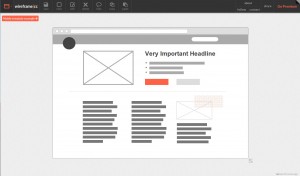
 When designing desktop apps, websites, and mobile applications, more than once I have tried using an application like mockingbird or Pencil Project. On one hand, mockingbird, is a web application that can be accessed from any browser and allows you to design multiple pages with different elements. On the other hand, Pencil Project, initially born as a Firefox extension, now has a multiplatform desktop application that allows you to mockup easily.
The drawback I see on these two applications is that for some reason, I always end up making simple mockups with a simple pen and paper. This way I can organize my ideas faster than using these applications. I guess the main reason for this is that I’m not a designer, so to me it is the same doing a shitty design in paper, than a shitty design with an application. Moreover, usually using a computer app for this task I end up spending more time to do the same…
Anyway, the other day I discovered Wireframe.cc, and the truth is that I was quite impressed by the UI. It is super-easy and fast to use. You just drag the mouse while clicking and voila, you have an item of the size of your selection. You click on the type of item you want and you are done with the item. Even if you want to change attributes, you just have to double click on it, and select the attributes you want to change.
Actually, it is the first time I feel that I do not waste my time doing mockups with an application of this kind. From what I’ve seen, this application is starting, and it still lacks of some functionalities and needs some polishment, but I suppose that those will be added in the future. Even I think this lack of complexity and lack of tons of box types is what makes you go faster.
I think choosing the right tool for a job is a matter of personal preferences and personal needs, but I would recommend trying wireframe.cc and taking a look at the other apps I pointed out at the beginning of the post.
Feel free to share any other tool you find useful in the comments 😉
 Español
Comments are closed.